The first time you open Separ8, macOS asks for permission to record your screen, and to use your microphone and camera.
With screen recording, macOS often needs Separ8 to quit and be reopened before it takes effect.
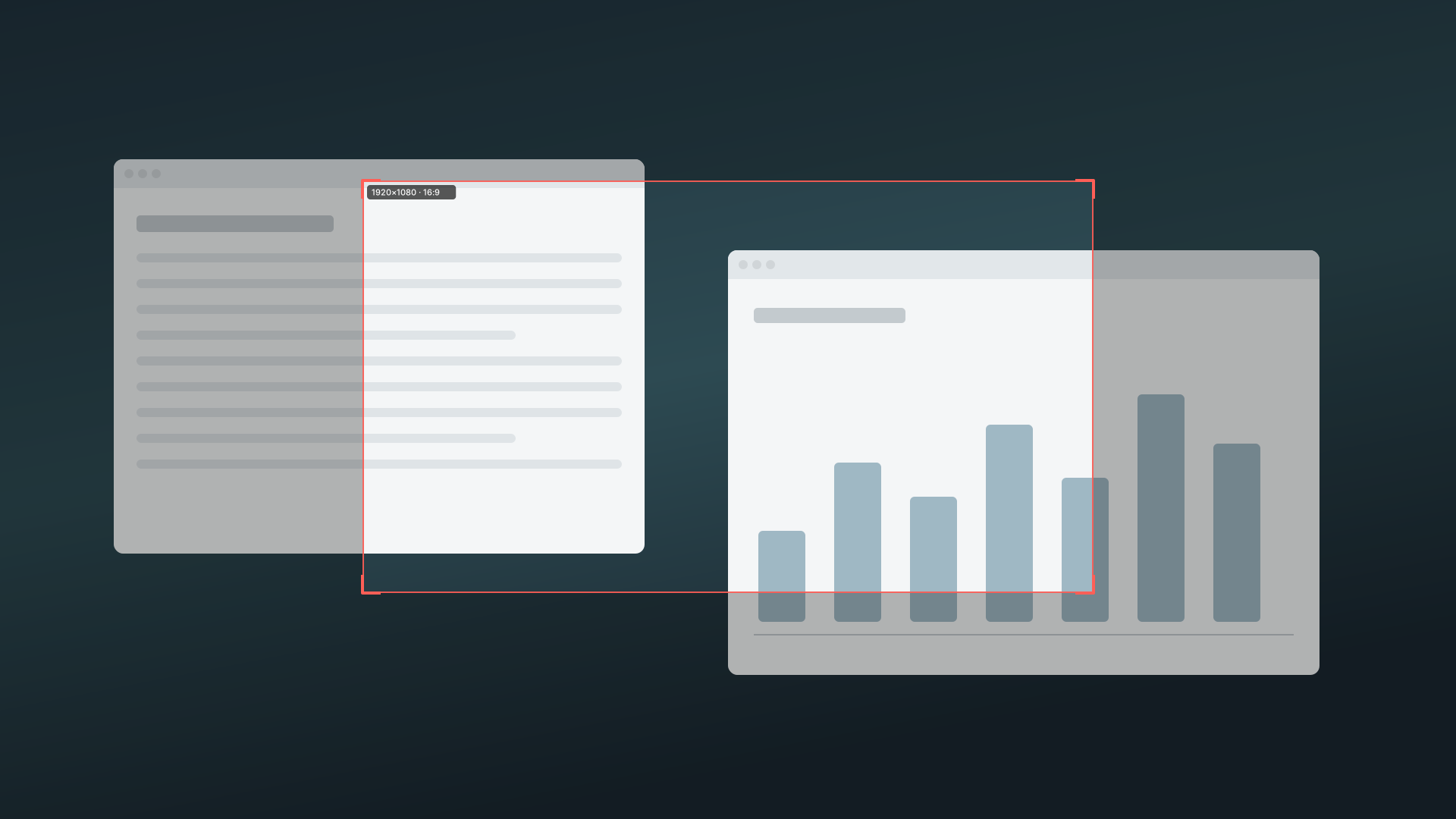
Click Capture options in the Screen row.

The Control bar then appears at the bottom of your screen, above your dock.

In the main window, tick the checkbox for what you want recorded. Each ticked row becomes its own file. Nothing is mixed together.
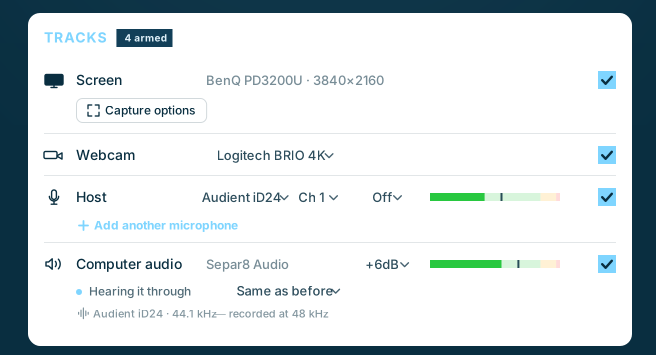
That's the point of the app. Your screen, your webcam, each microphone and your computer's sound all record separately. This way every file can be edited independently.
Click Start Recording.
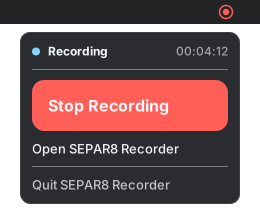
When you're finished, there are two ways to stop the recording. You can tap the Separ8 recording icon in your menu bar, and click stop recording.
Alternatively, if you leave the main Separ8 window open during recording, you can also stop the recording there by clicking "Stop Recording." The window itself does not show up in the screen recording.

The five steps above are all you need to make a recording. Everything below is a deeper
dive.
Here is where we go over where files land, how computer audio really works, cameras, microphones and what to check when something looks wrong. Read it when a question comes up, not before.
By default, ~/Movies/Separ8. Change it with Choose… in the Output
section.
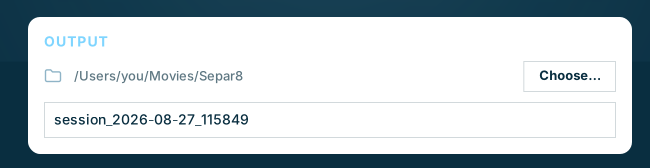
Every source gets its own file, all sharing one name:
session_2026-08-28_143022_video.mov — your screensession_2026-08-28_143022_webcam.mov — your camerasession_2026-08-28_143022_mic.wav — your microphonesession_2026-08-28_143022_computer-audio.wav — your Mac's soundMore cameras follow the same pattern, numbered like their rows: _webcam-2.mov,
_webcam-3.mov.
They all start at the same moment, so they line up when you drop them into your video editor software.
Separ8 can save a timeline file that opens in your video editor with every track already lined up. Choose your editor under Timeline for in the Output section: Final Cut, Resolve or Premiere. It starts on whichever one you have installed. Choose None to skip it.
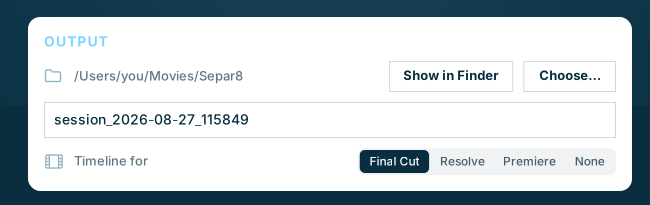
The timeline is saved next to the recording's files, with the same name. To open it:
.fcpxml file..otio file..xml file.Your screen, every camera and every sound file arrive stacked on a 4K timeline at your recording's frame rate, all starting together. A screen recorded at another size is fitted to the frame, so scale it however your project needs.
Tick Computer audio. Separ8 routes your Mac's sound through its proprietary audio driver and passes it straight to your selected audio output.
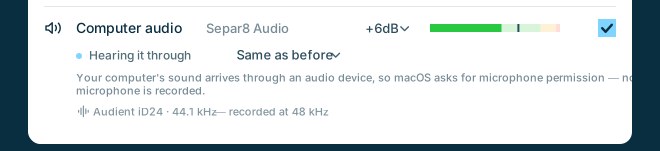
Separ8 acts as a bridge between all apps that normally produce sounds through your Mac's normal audio output. (Browsers, Apple Music, video calls, etc.) When you tick Computer audio, Separ8's internal audio driver routes and captures all of that for you so there is nothing to set up.
A DAW picks its own output device, separately from your Mac's system setting. To use Separ8 to capture your DAW audio, point your DAW's output to Separ8 Audio.
Separ8 routes your DAW audio through its internal audio driver for capturing. Make sure to set your system output to your preferred device, NOT to the Separ8 Audio driver.
The same goes for any other application where you select your own output. (OBS, various conferencing apps, etc.)
Playing an instrument while you record. Your DAW's sound reaches your ears through Separ8 on its way to your interface, and that adds a small delay. If it gets in the way of playing, turn on Low latency monitoring in Separ8, beside the computer audio destination. It roughly halves the delay. It costs a little processor and leaves less room for error, so if the sound breaks up, turn it off.
Separ8 always records at 48 kHz — it's a screen recorder, and video tools expect it. If your interface is running at 44.1 kHz, Separ8 automatically changes its own sample rate to match, and then converts to 48 kHz.
So you don't need to change anything. If you'd rather record natively and skip the conversion, set your interface to 48 kHz in Audio MIDI Setup (Applications → Utilities), and set your DAW project to 48 kHz as well. A DAW takes the interface over and forces it to the project's rate, quietly overriding whatever you chose in Audio MIDI Setup.
Pick a camera in the Webcam row and a small preview window appears.
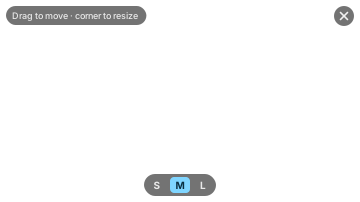
Hover over the preview window for its controls.

With another camera connected, Add another webcam appears under the Webcam row. Each camera gets its own row, its own preview window and its own file, numbered like its row:
_webcam.mov the Webcam row_webcam-2.mov Webcam 2_webcam-3.mov Webcam 3USB webcams, cameras in their webcam mode, an iPhone as a Continuity Camera and HDMI capture cards all work, in any mix. Separ8 has been tested with three at once.
Separ8 records each camera at its largest widescreen picture, up to 4K, at up to 30 fps. That includes a camera's HDMI output through a capture card like the Elgato Cam Link 4K, which gets the camera's full 4K picture.
A camera that can send more than 1080p gets a 4K / 1080p switch under its row. 4K is the sharpest picture. 1080p is a quarter of the work for your Mac, and it's the first thing to change if a recording is losing frames.
The screen and every camera are compressed as they record, by your Mac's video encoders, and those have a limit. Macs with a Max or Ultra chip have two or more encoders. Other Macs have one, so they reach the limit sooner.
For a sense of scale, here's an M1 Max recording a 4K screen at 30 fps:
You don't need to work this out in advance. If your Mac keeps losing frames during a recording, Separ8 says so straight away and suggests what to change, most useful first: switch a 4K camera to 1080p, capture a smaller part of the screen, use fewer cameras, or set a 60 fps screen to 30 fps.
Cameras record at up to 30 fps, which sits cleanly in a 30 fps or 60 fps timeline, where screen recordings belong anyway.
Separ8's camera recordings are good quality footage, quickly, already in the folder and in sync with everything else. That's right for tutorials, walkthroughs, talking heads and performance reference. For the camera recording you're planning to color grade, record independently in the camera.

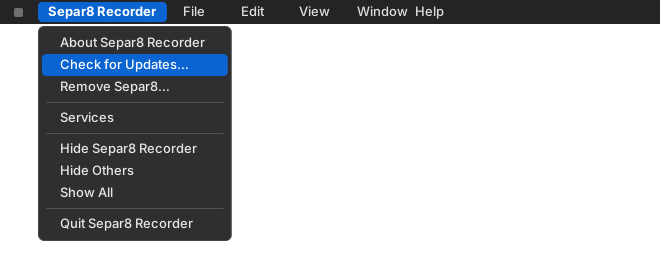
Separ8 checks for new versions on its own and offers them when ready. To check for updates manually, use Check for Updates… in the Separ8 menu.
When you run the Installer, you're really installing two things: the app itself, and the Separ8 Audio driver.
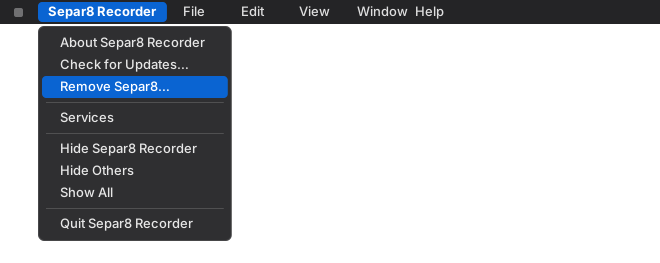
Open the Separ8 menu and choose Remove Separ8…. It asks to
confirm, then asks for your password to take the audio component out.
This removes the app and its audio component, and restarts your Mac's audio so the device disappears cleanly. Your sound will cut out for a second.